 Snipocket
 · Guides · Instant Replay
Record what already happened on screen
In shortNormal screen recorders only start after you press Record — too late for a fleeting bug or UI glitch. Enable Snipocket's Instant Replay to keep a rolling 10, 20 or 30-second buffer in memory. Press ⇧F2 (Ctrl+Alt+F10 on Windows) after the moment passes to save it as an MP4 on your Shelf — and search the text inside its frames later.
Core features free forever · Pro free for 7 days · No account · Mac 9.5 MB · Windows 122 MB
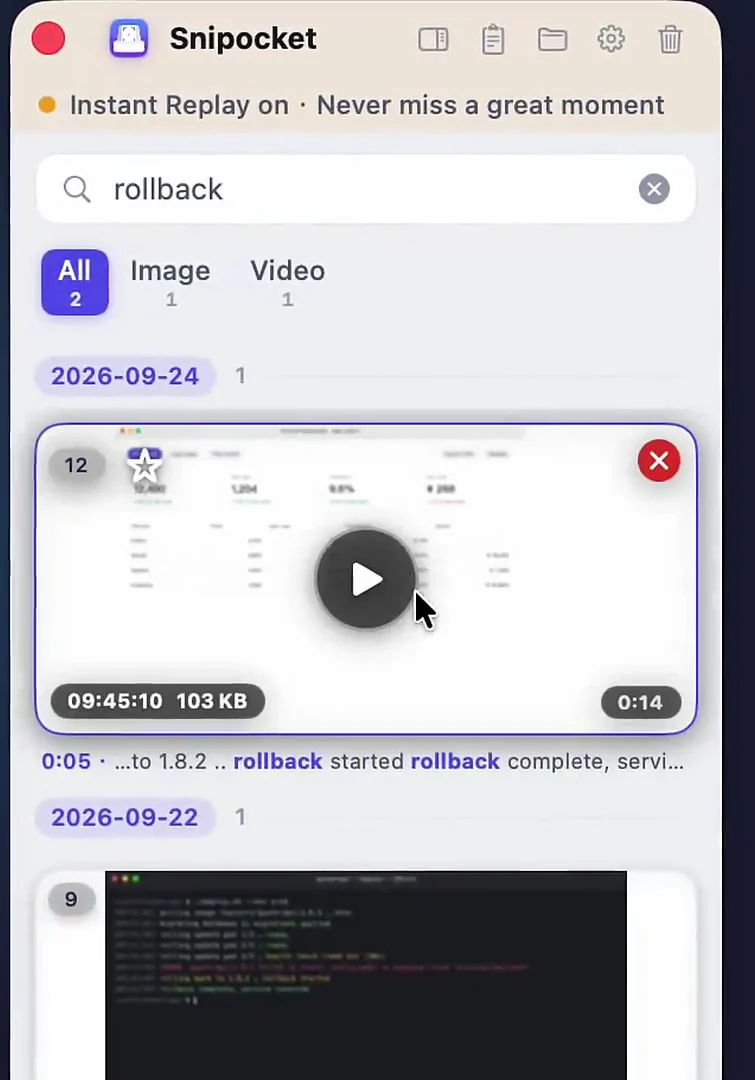
How Instant Replay works
Recording & export options
- Save last 10 / 20 / 30 seconds retroactively with ⇧F2 (Ctrl+Alt+F10)
- Full-screen recording (F2), region recording (⌘F2) and GIF recording (⌥⌘G)
- Optional camera PiP overlay, click ripples and keystroke pills
- Trim, adjust speed and apply clean wallpaper backgrounds before sharing
FAQ
Does Instant Replay drain battery if left on?
Instant Replay is off by default. Even when enabled, it can be set to buffer only while plugged into power so it never wastes battery on the road.
Can I search words that appeared in the video?
Yes. Snipocket scans frames when the screen image changes and indexes on-screen text locally, so searching “rollback” jumps right to the timestamp where it appeared.
How far back can Instant Replay save?
You can configure the rolling memory buffer to keep the last 10, 20 or 30 seconds of screen activity.
What happens when I start a normal recording with F2?
When Instant Replay is enabled, starting a full-screen recording with F2 (Ctrl+Alt+F9 on Windows) automatically includes those buffered seconds right before you hit record.
Related
See how text search works across images, videos and PDFs, or capture full scrolling webpages.
Never miss a once-in-a-hundred repro again.
Core features free forever · Pro free for 7 days · One-time purchase · No account