 Snipocket
Snipocket · Search text in screenshots
How to search the text inside your screenshots
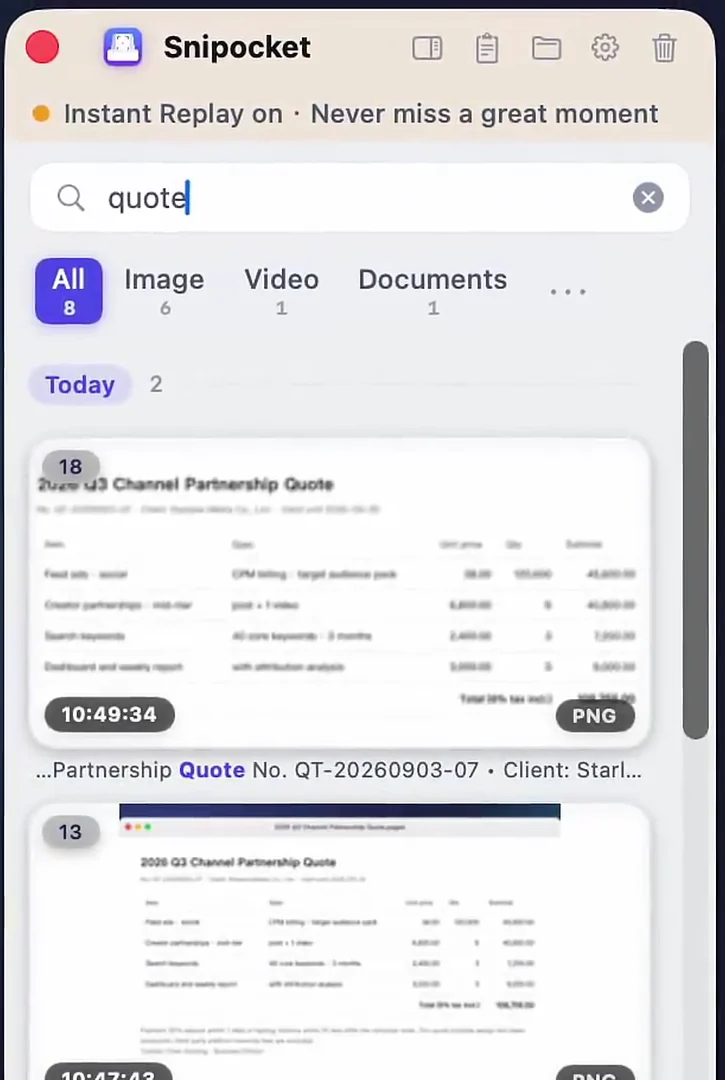
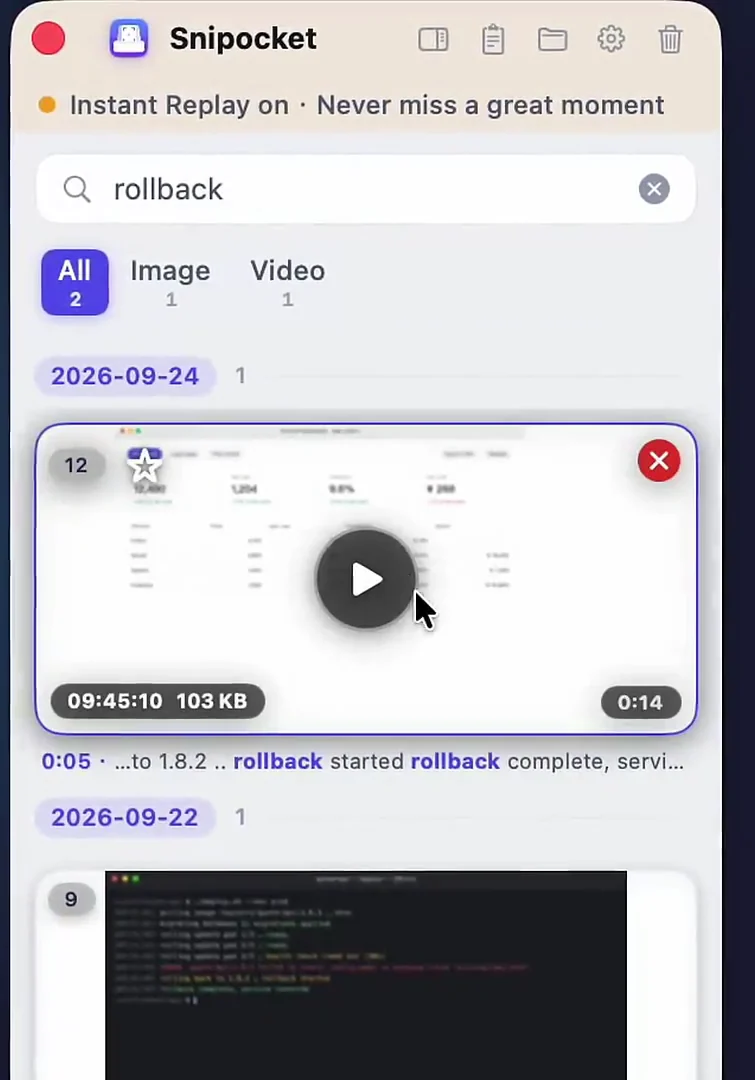
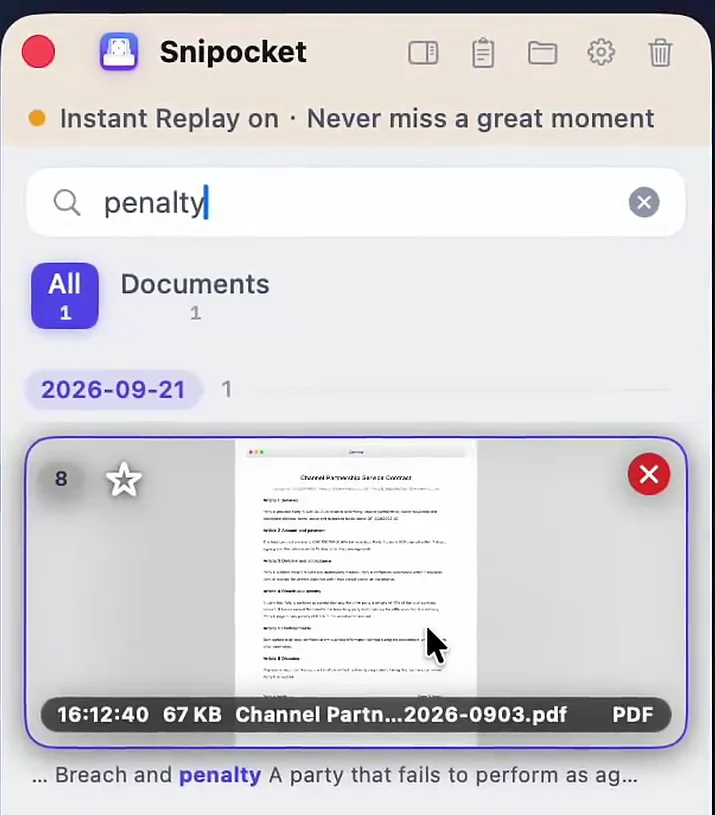
In shortmacOS and Windows save screenshots by file name, so Finder and File Explorer can't search what the image actually says. With Snipocket, every screenshot lands on a Shelf at the edge of your screen and the text inside it is recognized on your computer. Later, type two or three words you remember — “quote”, “rollback”, an order number — and the matching screenshots, screen recordings and PDFs appear, with the matched words highlighted.
Core features free forever · Pro free for 7 days · No account · Mac 9.5 MB · Windows 122 MB
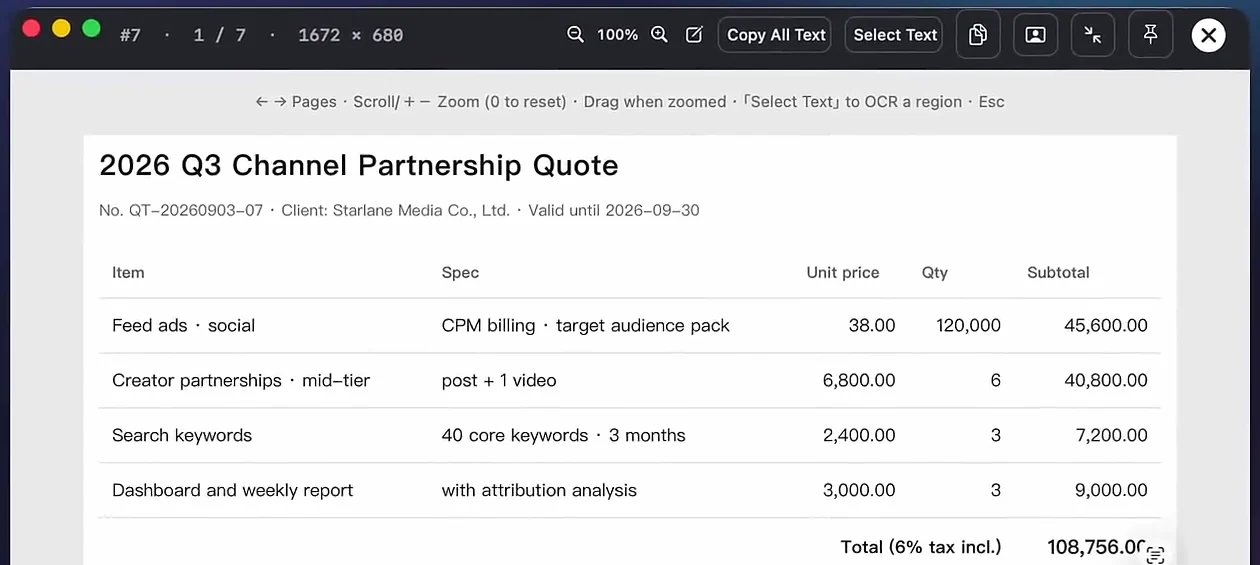
Real app, English interface: a screenshot found by searching “quote”, opened full size.
Get a screenshot back in three steps
What it looks like
Then use what you found
- Double-click a result to open it full size and make sure it's the right one
- “Copy All Text” copies every word in the image; “Select Text” grabs just one area
- Drag the thumbnail straight into a chat, email or document
- Star the ones you'll need again — favorites are never auto-cleaned
- Screenshots, camera photos and images copied from chat apps
- Screen recordings — frames are read as the picture changes, and results jump near that moment
- Body text of PDF, Word, Excel, PowerPoint, plain-text and code files
- Long scrolling screenshots, recognized in chunks so text in the middle is found too
Tips for faster hits
- Search for something unique to that image — an amount, an order number, a person or company — rather than generic words like “contract”
- Separate words with a space to require all of them, e.g. “starlane quote”
- Verification-code screenshots don't need searching: a banner appears at the top of the panel, click to copy the code
- Can't remember any words? Filter by type (Image / Video / Documents) and scroll by date
Requirements and limits
- System: macOS 13 or later (Apple silicon and Intel); Windows 10 1809 or later / Windows 11 (x64).
- Recognition: Apple Vision on Mac; a bundled on-device engine (PP-OCRv5) on Windows. Nothing is uploaded and no internet connection is needed.
- Only the Shelf is searched: screenshots from before you installed Snipocket don't appear until you drag them in.
- Accuracy: drops with very small, blurry, tilted, covered or handwritten text; stylized lettering and text inside icons may not be recognized.
- How many are kept: the Shelf keeps your latest 500 items by default (adjustable in Settings); older ones are cleaned up automatically, except favorites and documents.
What's free and what's Pro
Free forever
- Screenshots, timed capture, full set of annotation tools
- Copy and save with no watermark
- Pins that float on top, click-through, hide all at once
- Search by file name; view and drag out everything already on the Shelf
Pro (free 7-day trial, then a one-time purchase)
- Search by the text inside images
- Search text in recordings and PDF / Office documents
- Auto-collect screenshots and copied images onto the Shelf
- Text grab, QR scanning, smart redaction and more
The trial needs no account and nothing is deleted when it ends. Personal is $15 one-time for up to 3 devices — see pricing.
FAQ
Does it need the internet? Are my screenshots uploaded?
No and no. On Mac, text is recognized with Apple's built-in Vision framework; on Windows, Snipocket ships its own on-device engine (PP-OCRv5) and can fall back to Windows' built-in OCR. Recognition and the search index both stay on your computer, and everything works offline.
Can I search screenshots I took before installing Snipocket?
Only items on the Shelf are indexed. To add older screenshots, drag them onto the Shelf panel — they are recognized and become searchable just like new ones (drag-in import is a Pro feature, included in the free trial).
What if a search finds nothing?
Try a more distinctive word that appears in the image — an order number, a name, a company. Add a second word separated by a space to narrow it down. Tiny, blurry, tilted or handwritten text is recognized less reliably, and a screenshot taken a second ago may still show “Indexing” for a few seconds.
What happens when the trial ends?
Capturing, annotating, pinning, copying and saving stay free forever, and everything already on your Shelf is kept. Searching by the text inside images, searching recordings and documents, and auto-collecting screenshots are Pro features that continue after a one-time purchase.
Related
Already use CleanShot X or another capture tool? See how Snipocket works alongside CleanShot X — and on Windows.
Screenshot it once. Find it by what it says.
Core features free forever · Pro free for 7 days · One-time purchase · No account