 Snipocket
 · Guides · Auto-collect screenshots
Stop losing screenshots copied from chats
In shortWhen you copy an image from Slack, Teams, WeChat or a browser, it lives only on your clipboard — one Cmd+C later and it's gone. Snipocket quietly collects every system screenshot and copied image onto an edge Shelf as a real PNG file and indexes the text inside on your computer, so you can drag it back out or search it days later.
Core features free forever · Pro free for 7 days · No account · Mac 9.5 MB · Windows 122 MB
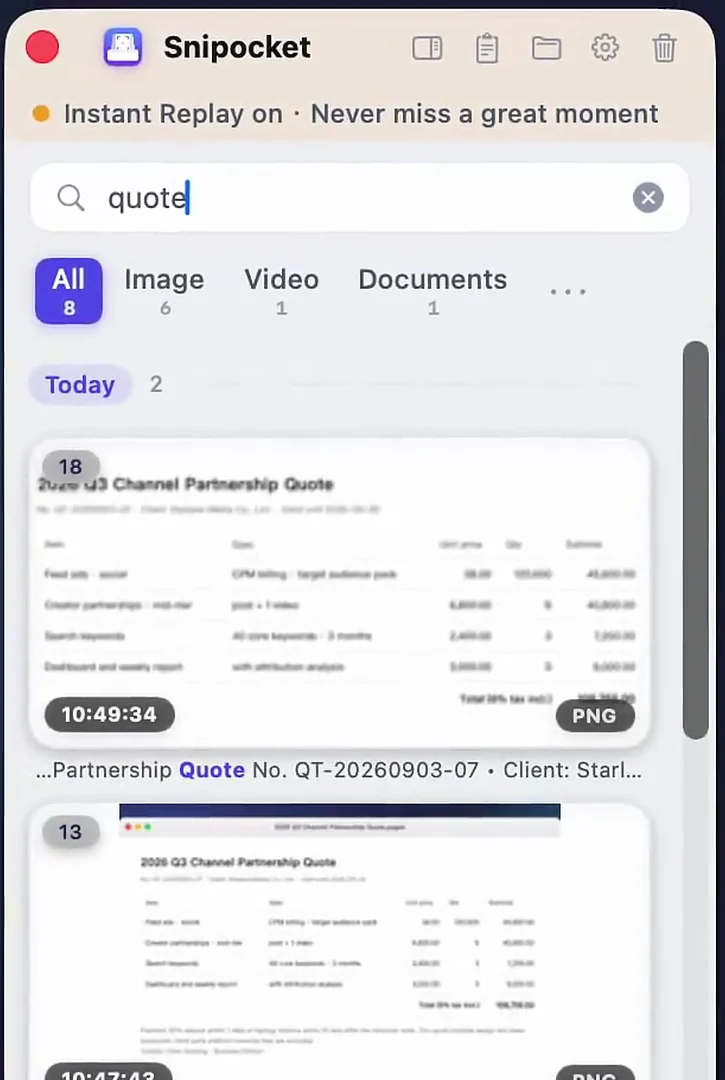
How auto-collection works
FAQ
Does it replace my existing screenshot tool or chat app?
No. Keep using system shortcuts, CleanShot X, or copy images straight out of Slack, Teams, Discord or WeChat. Snipocket watches the clipboard for new images and saves them to the Shelf automatically.
Does it auto-scan my entire chat history or photo library?
No. It only collects new screenshots and images copied while Snipocket is running. Older images stay untouched unless you drag them onto the Shelf.
Can I turn off auto-collect or pause popups?
Yes. Turn on Quiet Mode from the menu bar / tray so captures land silently without popping open the panel, or toggle clipboard image capture anytime.
Are copied images uploaded?
Never. Images are stored as plain PNG files on your computer (default Pictures/Snipocket) and recognized locally.
Related
Learn how on-device OCR search works or explore free text clipboard history.
Every capture kept, never overwritten.
Core features free forever · Pro free for 7 days · One-time purchase · No account